Scan and Pay Utility Bills on Mobile — A Beginner's Step-by-Step Guide
You just got a paper bill in Korean with numbers you can barely read, and the due date is three days away. Walking to a bank branch during work hours feels impractical, and you're not sure if the convenience store method still works for your bill type. The good news: your smartphone can handle the entire payment in about sixty seconds — if you know which app to open and where to point the camera.
This guide walks you through the exact process: which apps to use, what to set up beforehand, and what to do when the QR code just won't scan.
How Mobile Bill Payment Works in Korea
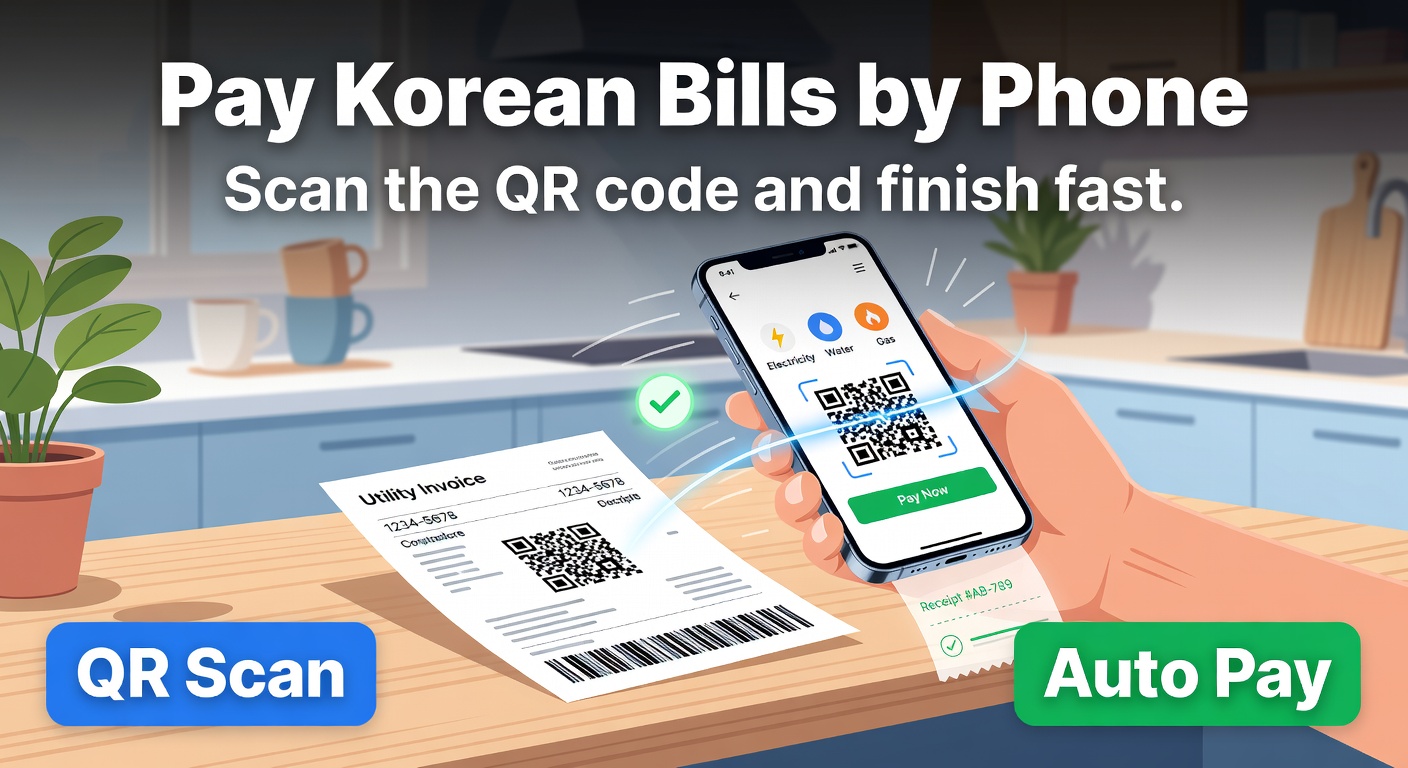
Korea's utility bill payment system has largely shifted to QR codes and barcodes printed on paper statements. When you scan one of these codes with a compatible app, it pulls up the biller (KEPCO for electricity, your local water authority, city gas company), your account number, the amount due, and the deadline — all automatically. You confirm, authenticate, and the payment processes immediately.
The key apps that support this scan-to-pay function fall into three categories: the government-backed Mobile Giro app (모바일지로), bank apps from institutions like KB Kookmin, Shinhan, or NH Nonghyup, and fintech payment apps like Toss, KakaoPay, and Naver Pay. All three routes follow a nearly identical flow — scan, verify, pay — but they differ in extra features like auto-pay setup and notification options.
One thing that trips up many newcomers: you don't necessarily need to scan a code at all. Every Korean utility bill also prints a digital payment number (전자납부번호, typically 10 to 16 digits) at the bottom. If scanning fails, you can type this number into any of the apps above and reach the same payment screen. Knowing this backup method saves a lot of frustration.
What You Need Before Your First Payment
Getting set up takes about ten minutes, and you only have to do it once. Here's what to have ready.
A Korean-registered smartphone. The apps require Korean App Store or Google Play accounts. Both Android and iOS work fine, but your phone number needs to be a Korean mobile number for identity verification.
One of the compatible apps installed. If you already use Toss or KakaoPay for transfers, you're set — both handle utility bills. If not, the Mobile Giro app covers the widest range of government and utility payments. Your bank's app is another solid choice if you prefer keeping everything in one place.
A linked payment method. This means a Korean bank account connected for direct withdrawal, or a registered debit/credit card. KakaoPay and Naver Pay users can also pay from their in-app balance. Set this up in the app's payment settings before your first bill arrives.
Identity verification completed. Most apps require a one-time verification step using your phone number, a Korean certificate (공동인증서 or 금융인증서), or biometric registration. If you haven't done this yet, allow an extra five minutes — the prompts walk you through it.
With these pieces in place, your first scan payment should take under a minute. Now let's walk through the actual steps.
The Scan-to-Pay Process: Step by Step
The flow is almost identical across apps, so this walkthrough applies whether you're using Toss, your bank app, or Mobile Giro.
Step 3 is where many people rush past and regret it. Some apps automatically include overdue amounts from previous months or add surcharges to the total. If you only intend to pay the current month's bill, double-check that the amount matches what's printed on your statement before confirming.
After payment, the processing is instant on the app side, but the utility provider's system can take one to three business days to reflect the payment. So if you check your account on the utility's website or app right after paying, it may still show as unpaid. This doesn't mean your payment failed — it's just a sync delay. Keep your digital receipt as proof in case you get a late-payment notice during that window.
Which App Should You Use?
The honest answer: whichever one you already have set up. But if you're choosing from scratch, here's how the main options compare.
| Feature | Mobile Giro (모바일지로) | Bank Apps | Toss / KakaoPay / Naver Pay |
|---|---|---|---|
| Bill coverage | Widest — national tax, local tax, utility, insurance premiums | Most utilities and taxes via that bank's system | Electricity, gas, water, telecom, apartment maintenance fees |
| QR/barcode scan | Yes | Yes | Varies — some bills require manual entry |
| Auto-pay setup | Limited (depends on biller) | Available at most banks | Well-organized with reminders |
| Payment reminders | Basic | 1–3 days before due date | Push notifications, customizable |
| Interface language | Korean only | Some offer English (KB, Shinhan) | Mostly Korean; Toss has partial English |
| Best for | Paying many different government bills | Users who bank with one main institution | Consolidating all bills in one dashboard |
For foreigners, Toss tends to be the most approachable option. Its interface is cleaner than most bank apps, and its "taxes and bills" section consolidates everything into one screen. KakaoPay is a close second, especially if you already use KakaoTalk daily. The Mobile Giro app covers the most bill types but its Korean-only interface can be challenging without some language ability.
A common point of confusion: some people assume they need a different app for each bill type. You don't. One app handles electricity, gas, water, and local taxes — the QR code on the bill tells the app which provider to route the payment to. The only exception is certain local government fees that might not appear in fintech apps but do show up in Mobile Giro.
Troubleshooting: When the Scan Doesn't Work
QR codes on Korean utility bills are generally reliable, but scanning issues happen more often than you'd expect. Here are the most common problems and fixes.
The code won't scan at all. This usually happens when the bill is wrinkled, the QR code is printed too small, or there's glare from overhead lighting. Flatten the bill on a table, move to even lighting, and hold your phone about 15 centimeters away. If it still won't work, try the barcode instead of the QR code — some apps pick up barcodes more easily.
You're scanning from a screenshot or screen. Many people photograph their bills intending to scan later from their camera roll. Most apps struggle with this because screen glare and resolution loss degrade the code. If you must scan from a screen, maximize brightness on the device displaying the code and hold it very still. Better yet, just type in the electronic payment number (전자납부번호) printed at the bottom of the bill.
The app shows the wrong amount or a different biller. This is rare but can happen with damaged codes. Never confirm a payment if the details don't match your paper bill. Close the screen and try again, or switch to manual number entry.
You missed the due date. Late fees on Korean utilities typically range from 0.7% to 3% of the bill amount, depending on the provider and how late the payment is. The good news: you can still pay via the same scan method after the deadline. The app will show the updated amount including the surcharge. Late fee policies vary by provider and region — the 0.7–3% surcharge is standard, but local government water bills may apply different terms, so check your specific issuer.
Setting Up Auto-Pay So You Never Scan Again
Once you've successfully paid a bill by scan, consider setting up automatic payments for future months. This is where fintech apps really shine.
In Toss, after your first payment, the app offers to register that bill for recurring auto-pay. You choose the payment source (account or card), and Toss handles the rest each month. It sends a notification a few days before the due date showing the upcoming amount, giving you a chance to review before it processes.
KakaoPay and Naver Pay work similarly. You register your bill (usually by entering your customer number for each utility), and the app pulls the amount each month and pays it automatically. Some municipal governments, particularly Seoul, offer a discount on water bills if you opt into mobile electronic billing — the savings are small but add up over a year.
Bank app auto-pay works through a traditional direct debit arrangement. You register the utility account in your banking app's "automatic transfer" section, and the bank deducts the amount when the bill arrives. This is the most established method and works with virtually every utility provider, though the setup menus are almost always in Korean.
One habit worth keeping even after setting up auto-pay: a quick monthly glance at the notification amount. Utility rates in Korea do change — electricity has seasonal pricing tiers, and gas bills spike in winter. A quick monthly glance at the notification keeps you from being surprised by a large withdrawal.
Bills You Can and Cannot Pay This Way
Most standard household utility bills support mobile scan payment. Here's the breakdown.
Fully supported across most apps: electricity (KEPCO), city gas, water (most municipalities), national health insurance, national pension contributions, local property tax, and vehicle tax.
Supported but may vary by region: waste disposal fees, certain apartment maintenance charges (관리비), and regional government non-tax fees. These depend on whether your local authority has enabled electronic payment numbers on their bills.
Usually not available via mobile scan: some court fees, certain one-time government fines, and bills from very small municipal offices that haven't adopted the QR system. For these, you may need to visit a bank branch, post office, or convenience store.
The safest rule of thumb: if your paper bill has a QR code or barcode printed on it, you can almost certainly pay it by scanning. If it only has a bank transfer account number, you'll need to do a manual bank transfer instead.
Conclusion
Paying Korean utility bills by phone is straightforward once you've done it once: install an app, link your payment method, scan the QR code, verify the details, and confirm. The entire payment takes less time than finding your shoes to walk to a convenience store. Start with whichever app you already use — Toss, KakaoPay, your bank — and scan your next bill as a test run. After confirming the payment went through (check both the app receipt and the utility provider's records a day or two later), set up auto-pay so next month handles itself.
Keep your paper bills for one billing cycle after payment, just in case you need the reference numbers.
Frequently Asked Questions
Q. Can I pay Korean utility bills with a foreign credit card on my phone?
Most Korean payment apps require a Korean-issued bank account or card. International credit cards generally don't work with Mobile Giro, Toss, or KakaoPay for utility bill payments. If you only have a foreign card, you'll likely need to visit a bank branch or convenience store, or ask your landlord about alternative arrangements.
Q. What happens if I scan the wrong QR code and pay the wrong bill?
The payment goes to whichever account the QR code is linked to. If you accidentally pay someone else's bill, you'll need to contact the utility provider directly to request a refund — the app itself cannot reverse the transaction. This is why the verification screen (step 3) matters: always check the account name and number match your bill before confirming.
Q. Do I need to speak Korean to use these bill payment apps?
You don't need fluency, but basic navigation helps since most apps are primarily in Korean. Toss offers partial English support, and some bank apps (KB Kookmin, Shinhan) have English modes. The scan-to-pay flow is visual enough that you can follow along by recognizing numbers and amounts, even without reading the Korean text around them.
Q. Is there a fee for paying utility bills through mobile apps?
No. Paying utility bills via Mobile Giro, bank apps, or fintech apps like Toss and KakaoPay does not incur additional transaction fees for the payer. The payment amount matches what's on your paper bill. However, if you pay after the due date, the late surcharge (typically 0.7% to 3%) is added by the utility provider, not the app.
Q. Can my roommate or spouse pay my utility bill from their phone?
Yes, as long as they have the QR code or the electronic payment number from the bill. The apps don't verify whether the person paying is the account holder — they verify the bill details and process the payment from whoever scans it. This is useful for shared households where one person handles all the bills.
IT Engineer · Content Creator
Practical guides based on official sources — simple and actionable.
View all posts →